Understand what MS Paint is and what it is used for.
Learn how to open MS Paint on the computer.
Identify the different parts of the MS Paint window.
Use drawing tools like Pencil, Brush, Eraser, Shapes, and Text.
Learn how to select and fill colors in a drawing.
Save a drawing using File → Save.
📖 Introduction — What is MS Paint?
MS Paint (Microsoft Paint) is a simple drawing program that comes free with every Windows computer. It lets you draw pictures, color them, add shapes, and write text — all using your mouse!
Just like you use crayons and paper to draw in your art class, MS Paint gives you a white canvas on the computer screen where you can create beautiful drawings. You can draw a house, a flower, the Indian flag, or anything you imagine!
MS Paint is found in the Accessories folder of Windows. It is one of the first programs children learn to use on a computer because it is easy and fun.
Think about it: Have you ever drawn a picture on paper and wished you could undo a mistake? In MS Paint, you can press Ctrl+Z to undo any mistake instantly!
Opening MS Paint
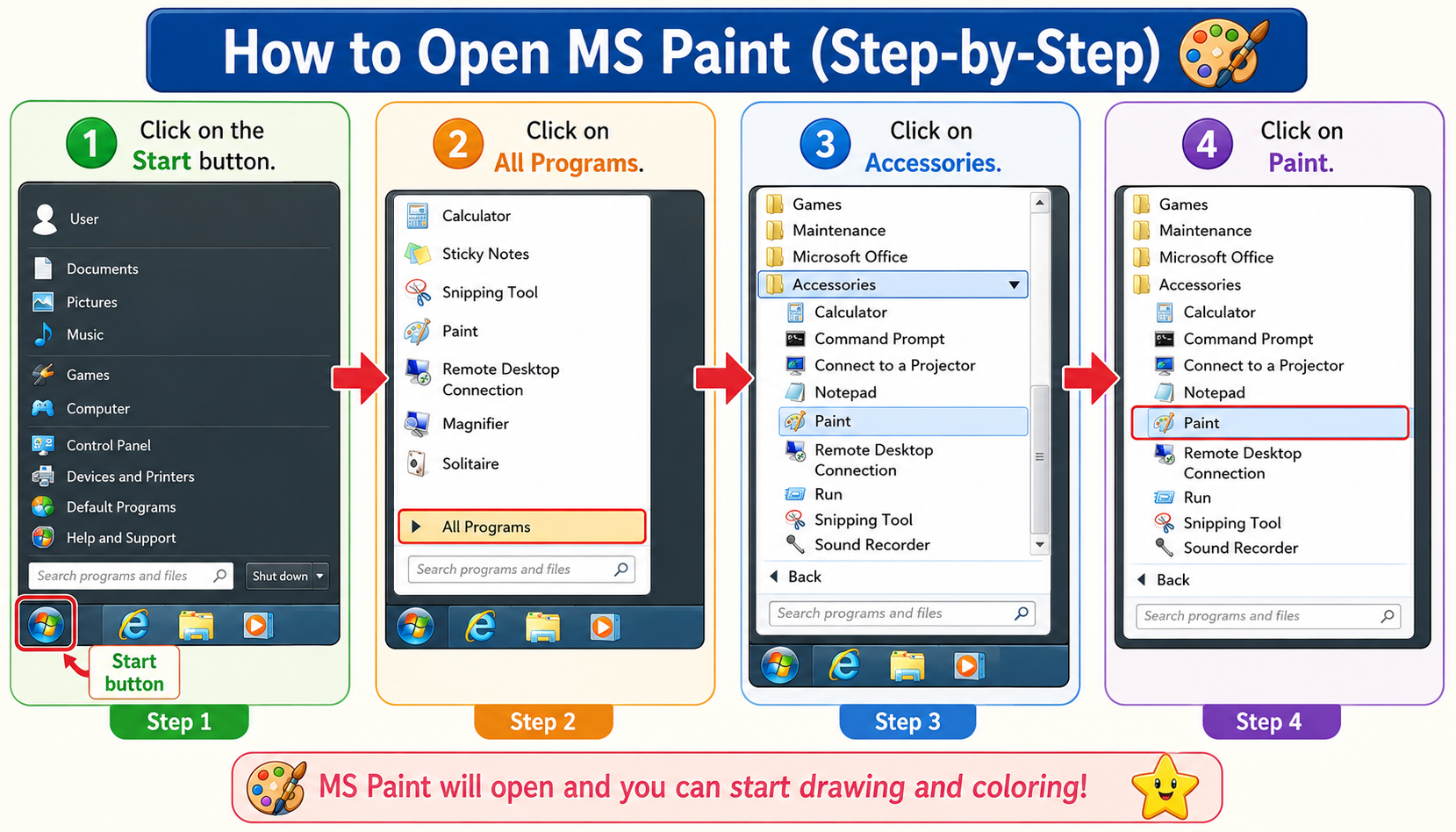
To open MS Paint on your computer, follow these simple steps:
Steps to Open MS Paint
Step 1: Click on the Start button (at the bottom-left corner of the screen).
Step 2: Click on All Programs.
Step 3: Click on Accessories.
Step 4: Click on Paint.
The MS Paint window will open with a white drawing area ready for you!
In newer versions of Windows (Windows 10/11), you can also type "Paint" in the search box next to the Start button and click on the Paint app to open it quickly.
Parts of the MS Paint Window
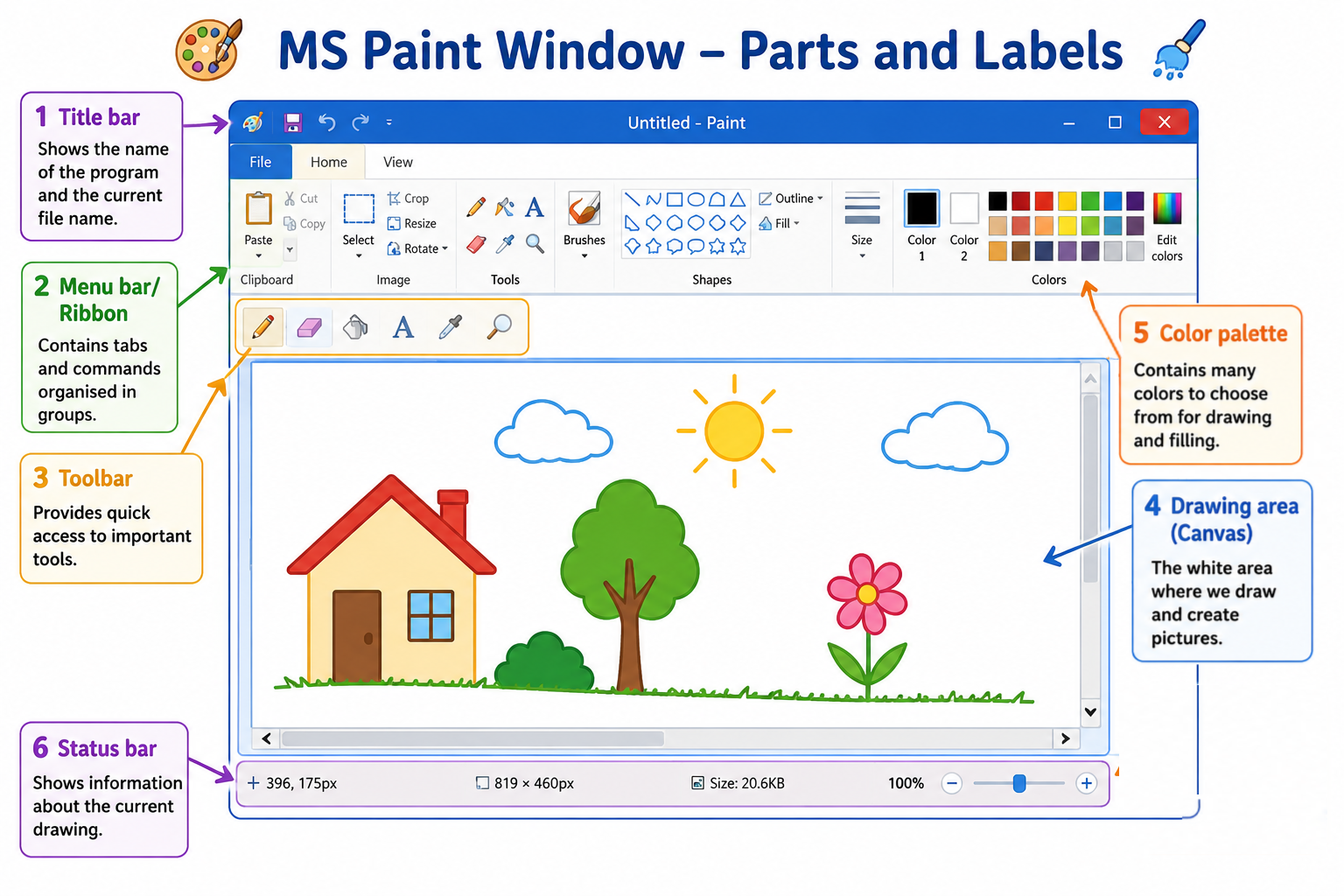
When you open MS Paint, you will see a window with many parts. Let us learn about each part:
Part of MS Paint
What it does
Title Bar
Shows the name of your drawing file at the top of the window. If you haven't saved yet, it shows "Untitled - Paint".
Menu Bar / Ribbon
Contains menus like File, Home, and View. You can find all the commands and options here.
Toolbar (Tools Panel)
Contains all the drawing tools — Pencil, Brush, Eraser, Shapes, Text, Fill, and more.
Drawing Area (Canvas)
The large white area in the center where you draw your pictures. This is your digital paper!
Color Palette
A row of colors at the top. Click on any color to use it for drawing. You can also create custom colors.
Status Bar
At the bottom of the window. Shows the position of your mouse cursor and the size of the canvas.
Drawing Tools in MS Paint
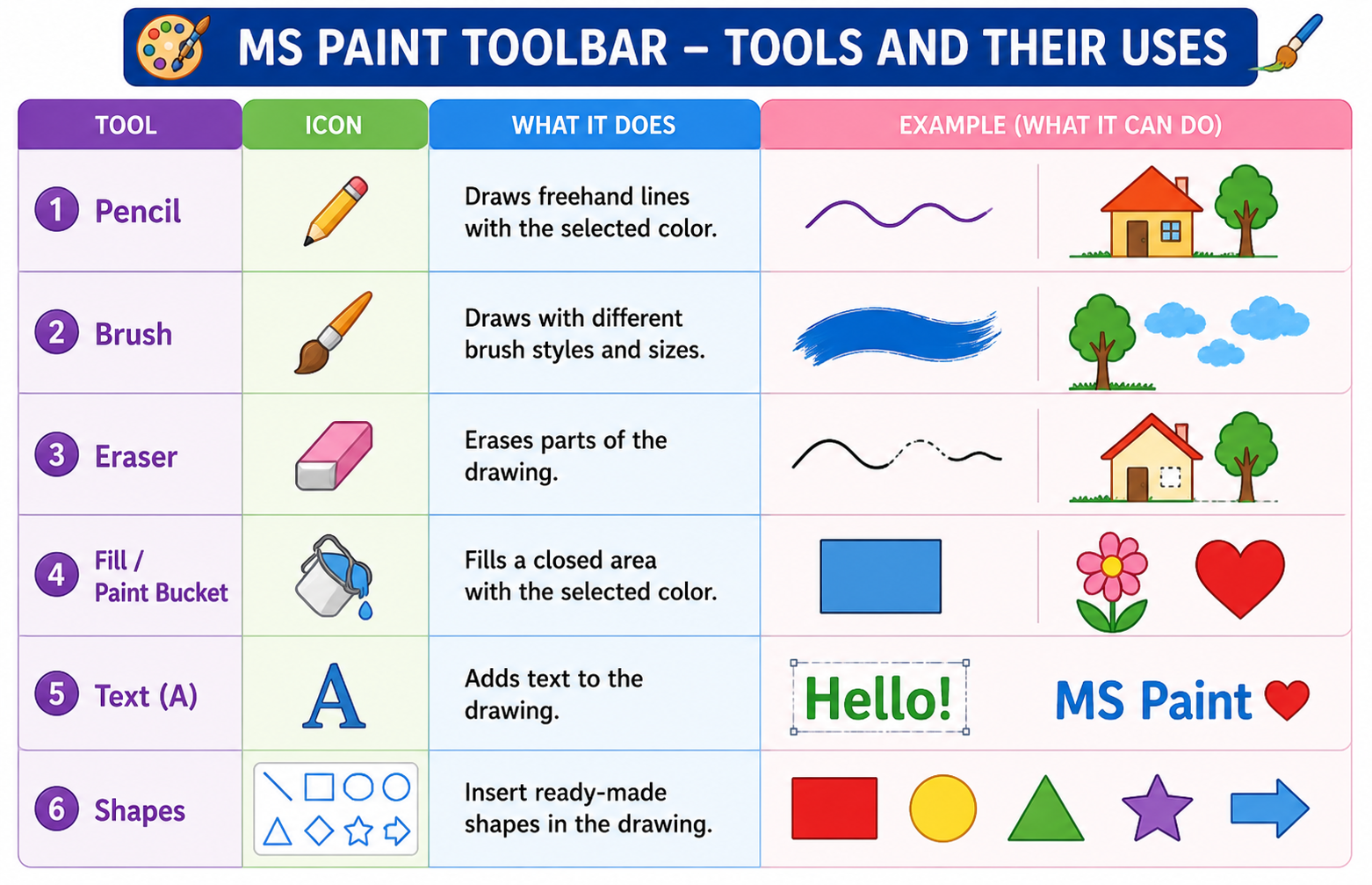
MS Paint has many tools to help you draw. Each tool does a different job. Let us learn about the most important ones:
Tool
What it does
How to use it
Pencil
Draws thin freehand lines
Click and drag the mouse to draw thin lines, just like a real pencil on paper.
Brush
Draws thicker, softer strokes
Click and drag to paint. You can choose different brush sizes and styles.
Eraser
Removes parts of your drawing
Click and drag over the part you want to erase. It turns that area white (or the background color).
Fill with Color (Paint Bucket)
Fills a closed area with a color
Select a color, click the Fill tool, then click inside any closed shape to fill it with that color.
Text Tool (A)
Lets you type text on the drawing
Click the "A" tool, draw a text box on the canvas, then type your text. You can choose font and size.
Shapes
Draws ready-made shapes
Choose a shape (line, rectangle, circle, oval, triangle, star) and drag on the canvas to draw it.
Drawing Shapes
MS Paint has many ready-made shapes you can use:
Line: Draws a straight line from one point to another.
Rectangle: Draws a box shape (like a door or a book).
Circle (Ellipse): Draws a round shape (like a ball or the sun).
Oval: Draws an egg-shaped figure.
Rounded Rectangle: A rectangle with smooth, rounded corners.
Triangle: A three-sided shape (like a roof).
Star: A star shape with pointed edges.
To draw a perfect circle, hold the Shift key while dragging the Ellipse tool. To draw a perfect square, hold Shift while using the Rectangle tool!
Using Colors in MS Paint
Colors make your drawings beautiful and lively! MS Paint gives you a Color Palette with many colors to choose from.
How to Select and Use Colors
Step 1: Look at the Color Palette at the top of the screen. You will see many colored squares.
Step 2:Left-click on a color to set it as your foreground color (Color 1). This is the color you draw with.
Step 3:Right-click on a color to set it as your background color (Color 2). This is used by the eraser and for shape fills.
Step 4: If you want a color that is not in the palette, click "Edit Colors" to create your own custom color!
Filling a Shape with Color
To fill a closed shape (like a rectangle or circle) with color:
First, choose the color you want from the Color Palette.
Then, click on the Fill with Color tool (it looks like a paint bucket).
Now, click inside the closed shape. The entire area will be filled with your chosen color!
Important: The shape must be completely closed (no gaps in the outline). If there is even a tiny gap, the color will leak out and fill the entire canvas!
Saving a Drawing
After you finish your drawing, you must save it so you don't lose your work. Saving stores your drawing as a file on the computer.
Steps to Save Your Drawing
Step 1: Click on File in the menu bar (or the blue button at the top-left).
Step 2: Click on Save (or press Ctrl + S on the keyboard).
Step 3: A "Save As" box will appear. Type a name for your drawing (for example: "My Indian Flag").
Step 4: Choose a location to save it (like Desktop, Documents, or My Pictures).
Step 5: Click the Save button. Done! Your drawing is now saved.
Always save your work! If the computer shuts down before you save, your drawing will be lost. Get into the habit of pressing Ctrl+S often while drawing.
Fun Things to Draw in MS Paint
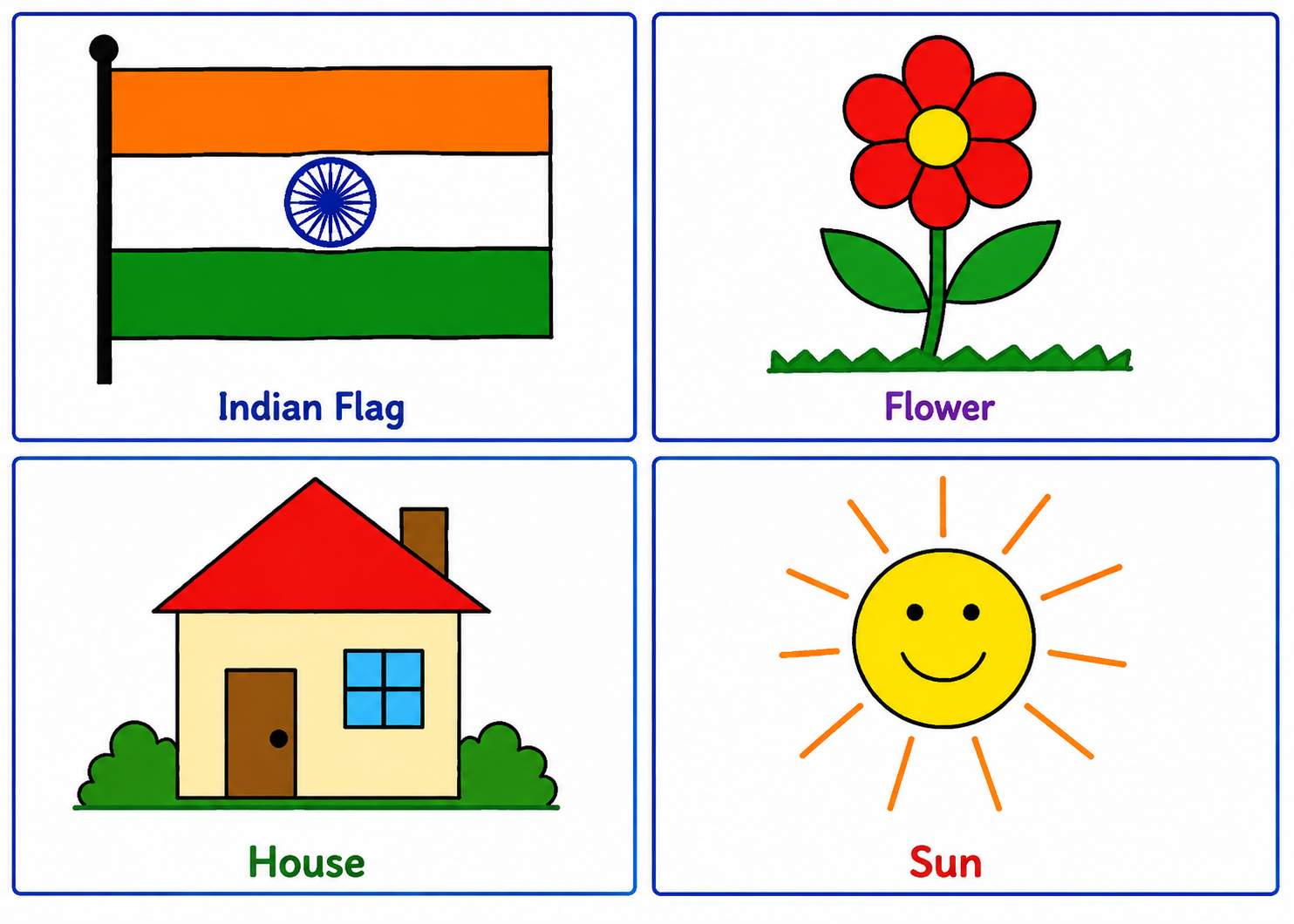
Now that you know the tools, here are some fun things you can draw in MS Paint:
Drawing
Tools You Can Use
Steps
Indian Flag 🇮🇳
Rectangle, Line, Fill, Ellipse
Draw a rectangle. Divide it into 3 equal parts with lines. Fill top with saffron, middle with white, bottom with green. Draw a blue circle (Ashoka Chakra) in the center.
Flower 🌸
Ellipse, Fill, Pencil
Draw a small circle in the center. Draw oval petals around it. Fill the center with yellow and petals with red or pink. Add a green stem with the Pencil tool.
House 🏠
Rectangle, Triangle, Line, Fill
Draw a rectangle for the walls. Add a triangle on top for the roof. Draw a small rectangle for the door and squares for windows. Fill with colors.
Sun ☀️
Ellipse, Line, Fill
Draw a circle. Fill it with yellow or orange. Draw straight lines going outward from the circle for sun rays.
Drawing the Indian Flag — Step by Step
1. Select the Rectangle tool and draw a big rectangle on the canvas.
2. Use the Line tool to draw two horizontal lines, dividing the rectangle into three equal horizontal strips.
3. Select the Fill tool. Choose saffron (orange) color and click in the top strip.
4. Choose white and click in the middle strip (it may already be white).
5. Choose green and click in the bottom strip.
6. Select the Ellipse tool. Choose navy blue color. Draw a small circle in the center of the white strip. This is the Ashoka Chakra!
7. Save your drawing as "Indian Flag".
📝 Key Words
Word
Meaning
MS Paint
A free drawing program that comes with Windows computers
Canvas
The white drawing area where you create your pictures
Toolbar
The panel that contains all the drawing tools
Pencil Tool
A tool that draws thin freehand lines
Brush Tool
A tool that draws thicker, softer strokes
Eraser
A tool that removes parts of your drawing
Fill with Color
A tool (paint bucket) that fills a closed area with color
Color Palette
The row of colors you can choose from for drawing
Save
To store your drawing as a file on the computer so you can open it later
Shapes
Ready-made figures like rectangle, circle, oval, line, and triangle
⭐ Key Points to Remember
MS Paint is a free drawing program that comes with Windows.
To open MS Paint: Start → All Programs → Accessories → Paint.
The main parts of MS Paint are: Title bar, Menu bar, Toolbar, Drawing area (Canvas), Color palette, and Status bar.
The Pencil tool draws thin lines. The Brush tool draws thicker strokes.
The Eraser tool removes parts of your drawing.
The Fill with Color (Paint Bucket) tool fills a closed shape with color.
You can draw shapes like lines, rectangles, circles, ovals, and triangles.
To save your drawing: File → Save → Type a name → Choose location → Click Save.
Hold Shift while drawing to make perfect circles and squares.
Press Ctrl+Z to undo a mistake.
✏️ Practice Questions
A. Fill in the Blanks
1. MS Paint is a program that comes free with Windows.
2. The white area where we draw pictures is called the .
3. To open MS Paint, we go to Start → All Programs → → Paint.
4. The tool is used to draw thin freehand lines.
5. The tool removes parts of a drawing.
6. The Fill with Color tool looks like a .
7. To save a drawing, we click on → Save.
8. The shows the name of your file at the top of the window.
9. To type text on a drawing, we use the tool.
10. We press to undo a mistake in MS Paint.
B. Multiple Choice Questions
1. MS Paint is used for:
(a) Typing letters(b) Drawing pictures(c) Playing music(d) Browsing the internet
2. Which tool fills a closed shape with color?
(a) Pencil(b) Eraser(c) Fill with Color(d) Text
3. Where is MS Paint found on the computer?
(a) My Documents(b) Recycle Bin(c) Accessories(d) Control Panel
4. Which tool would Anita use to remove a wrong line from her drawing?
(a) Brush(b) Pencil(c) Eraser(d) Fill
5. What keyboard shortcut is used to save a drawing?
(a) Ctrl+Z(b) Ctrl+S(c) Ctrl+P(d) Ctrl+N
C. Short Answer Questions
1. What is MS Paint? What is it used for?
2. Write the steps to open MS Paint on a computer.
3. Name any four drawing tools available in MS Paint.
4. How do you fill a shape with color in MS Paint?
5. Write the steps to save a drawing in MS Paint.
D. True or False
1. MS Paint is used for typing documents.
2. The Eraser tool removes parts of a drawing.
3. You cannot draw a circle in MS Paint.
4. The Fill with Color tool can fill any closed shape with color.
5. We do not need to save our drawing in MS Paint.
E. Match the Following
Column A
Column B
1. Pencil
(a) Fills a closed area with color
2. Eraser
(b) Draws thin freehand lines
3. Fill with Color
(c) Lets you type words on the drawing
4. Text Tool
(d) Removes parts of the drawing
5. Brush
(e) Draws thicker, softer strokes
🎨 Activity: Draw the Indian Flag in MS Paint!
Open MS Paint on your computer and follow these steps to draw the Indian National Flag:
1. Use the Rectangle tool to draw a big rectangle.
2. Use the Line tool to divide it into 3 equal horizontal strips.
3. Use the Fill with Color tool to fill the top strip with saffron (orange), keep the middle strip white, and fill the bottom strip with green.
4. Use the Ellipse tool to draw a small navy blue circle in the center of the white strip (this is the Ashoka Chakra).
5. Save your drawing as "Indian Flag" on the Desktop.
6. Show your drawing to your teacher!
Want a printable worksheet? Switch to Worksheet View, then print.
Computer
MS Paint
Class 3 | CBSE / NCERT / ICSE
Name: Class / Sec: Date:
🎯 Learning Objectives
Understand what MS Paint is and what it is used for.
Learn how to open MS Paint on the computer.
Identify the different parts of the MS Paint window.
Use drawing tools like Pencil, Brush, Eraser, Shapes, and Text.
Learn how to select and fill colors in a drawing.
Save a drawing using File → Save.
📖 What is MS Paint?
MS Paint (Microsoft Paint) is a simple drawing program that comes free with every Windows computer. It lets you draw pictures, color them, add shapes, and write text — all using your mouse!
Just like you use crayons and paper to draw in art class, MS Paint gives you a white canvas on the computer screen where you can create beautiful drawings. MS Paint is found in the Accessories folder of Windows.
Opening MS Paint
Steps to Open MS Paint:
Step 1: Click on the Start button (bottom-left corner).
Step 2: Click on All Programs.
Step 3: Click on Accessories.
Step 4: Click on Paint.
In Windows 10/11, you can also type "Paint" in the search box and click on the Paint app.
Parts of the MS Paint Window
Part
What it does
Title Bar
Shows the name of your drawing file at the top.
Menu Bar / Ribbon
Contains menus like File, Home, and View with all commands.
Hold the Shift key while drawing to make perfect circles and squares!
Computer
MS Paint (continued)
Class 3 | CBSE / NCERT / ICSE
Name: Class / Sec: Date:
Using Colors in MS Paint
How to Select and Use Colors:
1. Look at the Color Palette at the top of the screen.
2. Left-click on a color to set it as your drawing color (Color 1).
3. Right-click on a color to set it as your background color (Color 2).
4. Click "Edit Colors" to create a custom color.
Filling a shape: Choose a color → Click the Fill with Color tool (paint bucket) → Click inside a closed shape. The shape fills with your chosen color!
Important: The shape must be completely closed (no gaps). If there is a tiny gap, the color will leak out and fill the entire canvas!
Saving a Drawing
Steps to Save:
1. Click on File in the menu bar.
2. Click on Save (or press Ctrl + S).
3. Type a name for your drawing (e.g., "My Indian Flag").
4. Choose a location (Desktop, Documents, or My Pictures).
5. Click the Save button. Done!
Always save your work! Press Ctrl+S often while drawing. Press Ctrl+Z to undo a mistake.
Fun Things to Draw in MS Paint
Drawing
Tools to Use
Steps
Indian Flag 🇮🇳
Rectangle, Line, Fill, Ellipse
Draw rectangle → Divide into 3 strips → Fill saffron, white, green → Draw blue circle in center
Flower 🌸
Ellipse, Fill, Pencil
Draw center circle → Draw oval petals → Fill with colors → Add green stem
House 🏠
Rectangle, Triangle, Line, Fill
Draw rectangle walls → Add triangle roof → Add door and windows → Fill colors
Sun ☀️
Ellipse, Line, Fill
Draw circle → Fill yellow → Draw lines outward for rays
📝 Key Words
Word
Meaning
MS Paint
A free drawing program that comes with Windows computers
Canvas
The white drawing area where you create your pictures
Toolbar
The panel that contains all the drawing tools
Pencil Tool
A tool that draws thin freehand lines
Brush Tool
A tool that draws thicker, softer strokes
Eraser
A tool that removes parts of your drawing
Fill with Color
A tool (paint bucket) that fills a closed area with color
Color Palette
The row of colors you can choose from for drawing
Save
To store your drawing as a file on the computer
Shapes
Ready-made figures like rectangle, circle, oval, line, triangle
⭐ Key Points to Remember
MS Paint is a free drawing program that comes with Windows.
To open MS Paint: Start → All Programs → Accessories → Paint.
Main parts: Title bar, Menu bar, Toolbar, Canvas, Color palette, Status bar.
Pencil draws thin lines. Brush draws thicker strokes.
Eraser removes parts of your drawing.
Fill with Color (Paint Bucket) fills a closed shape with color.
You can draw shapes like lines, rectangles, circles, ovals, and triangles.
To save: File → Save → Type name → Choose location → Click Save.
Hold Shift for perfect circles and squares.
Press Ctrl+Z to undo a mistake.
Computer
MS Paint — Practice Questions
Class 3
Name: Class / Sec: Date:
A. Fill in the Blanks
1. MS Paint is a program that comes free with Windows.
2. The white area where we draw pictures is called the .
3. To open MS Paint, we go to Start → All Programs → → Paint.
4. The tool is used to draw thin freehand lines.
5. The tool removes parts of a drawing.
6. The Fill with Color tool looks like a .
7. To save a drawing, we click on → Save.
8. The shows the name of your file at the top of the window.
9. To type text on a drawing, we use the tool.
10. We press to undo a mistake in MS Paint.
B. Multiple Choice Questions
1. MS Paint is used for:
(a) Typing letters(b) Drawing pictures(c) Playing music(d) Browsing the internet
2. Which tool fills a closed shape with color?
(a) Pencil(b) Eraser(c) Fill with Color(d) Text
3. Where is MS Paint found on the computer?
(a) My Documents(b) Recycle Bin(c) Accessories(d) Control Panel
4. Which tool would Anita use to remove a wrong line from her drawing?
(a) Brush(b) Pencil(c) Eraser(d) Fill
5. What keyboard shortcut is used to save a drawing?
(a) Ctrl+Z(b) Ctrl+S(c) Ctrl+P(d) Ctrl+N
C. Short Answer Questions
1. What is MS Paint? What is it used for?
2. Write the steps to open MS Paint on a computer.
3. Name any four drawing tools available in MS Paint.
4. How do you fill a shape with color in MS Paint?
5. Write the steps to save a drawing in MS Paint.
D. True or False
1. MS Paint is used for typing documents.
2. The Eraser tool removes parts of a drawing.
3. You cannot draw a circle in MS Paint.
4. The Fill with Color tool can fill any closed shape with color.
5. We do not need to save our drawing in MS Paint.
E. Match the Following
Column A
Column B
1. Pencil
(a) Fills a closed area with color
2. Eraser
(b) Draws thin freehand lines
3. Fill with Color
(c) Lets you type words on the drawing
4. Text Tool
(d) Removes parts of the drawing
5. Brush
(e) Draws thicker, softer strokes
🎨 Activity: Draw the Indian Flag in MS Paint!
Open MS Paint and follow these steps:
1. Use the Rectangle tool to draw a big rectangle.
2. Use the Line tool to divide it into 3 equal horizontal strips.
3. Use Fill with Color: top strip = saffron, middle = white, bottom = green.
4. Use the Ellipse tool to draw a navy blue circle in the center (Ashoka Chakra).
5. Save your drawing as "Indian Flag" on the Desktop.
6. Show your drawing to your teacher!
You are viewing the Worksheet layout. Click Print to save as PDF or print on A4 paper.